| assets/images | ||
| src/Workshop.PerformanceMeasuring | ||
| .gitignore | ||
| LICENSE | ||
| README.md | ||

Workshop performance measuring
This workshop was performed on 03/12/2024 internally at World-Direct eBusiness solutions GmbH. The topic of this workshop was the measuring of an applications performance primarily by using BenchmarkDotnet. All code is stored within this repository for self studying.
What is performance measuring?
Performance measurement is the process of collecting, analyzing and/or reporting information regarding the performance of an individual, group, organization, system or component.1
Performance measuring applies to many different scenarios like measuring the productivity of a factory, the growth of a company's revenue, the up- and downtime of a system or the time and resource consumption of a software. In this workshop we are focusing on the latter part - the software.
There are many indicators for the performance of a software, which can tell you in more detail, how your software performs under certain conditions. Some of this indicators, also called as key performance indicators (KPIs)2, are for example:
- the average time of an algorithm
- the memory consumption of your application
- the utilization of threads/cores
- the frames per seconds of a video game
You can measure some of these indicators in a simple way by yourself, for example by using a Stopwatch or a performance profiler, which is build-in in Visual Studio3 or Rider4. Others needs specialized tools to perform the measurement like 3DMark for video games, but we are focusing here only on programs for .NET. These tools are measuring these indicators only when the application is running and you are explicit using them, but to get a meaningful result of your application's indicators you need more than a single measurement sample. To get a bulletproof indicator for your application's performance, you must apply these measurements multiple times under the same conditions and with the same baseline value over and over. This procedure is also called as benchmarking. But how you can assure that you provide the same testing conditions for each run? Do you know, how to statistically interpret the results in a meaningful way?
No? Then here comes BenchmarkDotnet to the rescue, which takes the burdens, pitfalls and mistakes you are facing during this procedure.
BenchmarkDotnet
BenchmarkDotnet is an open-source tool written by Andrey Akinshin and other community members. Almost all parts of BenchmarkDotnet are written in C# and the project is supported by the .NET Foundation5, so indirectly also by Microsoft, and AWS Open Source Software Foundation6. Its widely adopted by many other open-source-projects to display their software performances and its also extensively used by Microsoft itself to express their continuous improvements in .NET, ASP.NET Core and other subparts.
BenchmarkDotnet describes itself like following:
BenchmarkDotNet helps you to transform methods into benchmarks, track their performance, and share reproducible measurement experiments. It's no harder than writing unit tests! Under the hood, it performs a lot of magic that guarantees reliable and precise results thanks to the perfolizer statistical engine. BenchmarkDotNet protects you from popular benchmarking mistakes and warns you if something is wrong with your benchmark design or obtained measurements. The results are presented in a user-friendly form that highlights all the important facts about your experiment. BenchmarkDotNet is already adopted by 19100+ GitHub projects including .NET Runtime, .NET Compiler, .NET Performance, and many others.
BenchmarkDotnet provides a simple API to benchmark .NET code of any size. The configuration of a benchmark is achieved by using one of the many attributes, which let you decide the .NET version to run, several exporters and diagnoser. The usage of BenchmarkDotnet will be described in the following chapters.
How to run a benchmark with BenchmarkDotnet?
All of the following code is located within this repository. The IDE I use for the following examples is Rider, but they should also be similar for Visual Studio and Visual Studio Code. Also the following chapters are based on the documentation of BenchmarkDotnet7, where you can read more about BenchmarkDotnet.
- First you create a console application, let's call it
Workshop.PerformanceMeasuring.BenchmarkDotnetDemo, within your IDE. - Install the NuGet package for
BenchmarkDotnetthrough the IDE's UI or by the following command, which you are executing within your console applications folder (where your.csprojis located, so./Workshop.PerformanceMeasuring/Workshop.PerformanceMeasuring.BenchmarkDotnetDemo).
> dotnet add package BenchmarkDotNet

- Now you have successfully setup your project to run benchmarks, but we don't have any code to benchmark yet. The following code example is copied from the
BenchmarkDotnetdocumentation8, which benchmarks the cryptographic hash functions MD5 and SHA256, and adapted it to our situation.
The Md5VsSha256.cs contains the benchmark setup for the SHA256 and MD5 benchmarks.
namespace Workshop.PerformanceMeasuring.BenchmarkDotnetDemo
{
    using System;
    using System.Security.Cryptography;
    using BenchmarkDotNet.Attributes;
    using BenchmarkDotNet.Running;

    public class Md5VsSha256
    {
        private const int N = 10000;
        private readonly byte[] data;

        private readonly SHA256 sha256 = SHA256.Create();
        private readonly MD5 md5 = MD5.Create();

        public Md5VsSha256()
        {
            data = new byte[N];
            new Random(42).NextBytes(data);
        }

        [Benchmark]
        public byte[] Sha256() => sha256.ComputeHash(data);

        [Benchmark]
        public byte[] Md5() => md5.ComputeHash(data);
    }
}
The Program.cs contains the BenchmarkRunner which runs our benchmarks by calling the Run<Md5VsSha256> method.
namespace Workshop.PerformanceMeasuring.BenchmarkDotnetDemo
{
    using BenchmarkDotNet.Running;

    public static class Program
    {
        public static void Main(string[] args)
        {
            var summary = BenchmarkRunner.Run<Md5VsSha256>();
        }
    }
}
- To run the benchmarks we must switch the build process to the
Releasemode. In Rider you can achieve this by right-clicking on the solution, selectProperties...and changeConfiguration and PlatformfromDebug | AnyCPUtoRelease | AnyCPU9. For Visual Studio you can read the guide from Microsoft10. Otherwise you can type the following command within the folder, where your console application is located:
> dotnet run -c Release
This optimizes the output of the binary build and provides BenchmarkDotNet a solid foundation to benchmark.
- After all benchmarks has successfully been run, BenchmarkDotNet prints the results in the console. An example would look like following:
BenchmarkDotNet v0.13.12, Windows 11 (10.0.22631.3155/23H2/2023Update/SunValley3) (Hyper-V)
Intel Xeon Gold 6144 CPU 3.50GHz, 1 CPU, 8 logical and 4 physical cores
.NET SDK 8.0.201
  [Host]     : .NET 8.0.2 (8.0.224.6711), X64 RyuJIT AVX-512F+CD+BW+DQ+VL
  DefaultJob : .NET 8.0.2 (8.0.224.6711), X64 RyuJIT AVX-512F+CD+BW+DQ+VL


| Method | Mean     | Error    | StdDev   |
|------- |---------:|---------:|---------:|
| Sha256 | 42.71 us | 0.766 us | 1.238 us |
| Md5    | 17.14 us | 0.107 us | 0.089 us |
Lame, I want cool stuff!
BenchmarkDotNet provides more functionality to measure other parts of our example, like the memory consumption, thread usage or selecting a specific .NET version to run. In this chapter we are going deeper into these functionalities.
Memory diagnoser
With the memory diagnoser BenchmarkDotNet can measure the allocated memory by your program. To enable this feature, you must simply put the [MemoryDiagnoser] attribute above your class that contains your benchmarks and run the benchmarks again.
[MemoryDiagnoser]
public class Md5VsSha256
{
    private const int N = 10000;
    private readonly byte[] data;

    private readonly SHA256 sha256 = SHA256.Create();
    private readonly MD5 md5 = MD5.Create();

    public Md5VsSha256()
    {
        data = new byte[N];
        new Random(42).NextBytes(data);
    }

    [Benchmark]
    public byte[] Sha256() => sha256.ComputeHash(data);

    [Benchmark]
    public byte[] Md5() => md5.ComputeHash(data);
}
An example output looks like following:
BenchmarkDotNet v0.13.12, Windows 11 (10.0.22631.3155/23H2/2023Update/SunValley3) (Hyper-V)
Intel Xeon Gold 6144 CPU 3.50GHz, 1 CPU, 8 logical and 4 physical cores
.NET SDK 8.0.201
  [Host]     : .NET 8.0.2 (8.0.224.6711), X64 RyuJIT AVX-512F+CD+BW+DQ+VL
  DefaultJob : .NET 8.0.2 (8.0.224.6711), X64 RyuJIT AVX-512F+CD+BW+DQ+VL


| Method | Mean     | Error    | StdDev   | Allocated |
|------- |---------:|---------:|---------:|----------:|
| Sha256 | 46.36 us | 0.926 us | 2.219 us |     112 B |
| Md5    | 17.12 us | 0.117 us | 0.098 us |      80 B |
Selecting different .NET versions
BenchmarkDotNet allows you to select different .NET versions to run your benchmarks on. So you can see, how your code performs on different .NET versions. This gives you a good indicator, if your code depends on any improvements made within the .NET runtime. To enable this feature, you must simply put a [SimpleJob()] attribute, where you select your .NET version within the round brackets. For example, if you want to execute your benchmarks on .NET 7 and .NET 8, you put the attributes like following:
[SimpleJob(RuntimeMoniker.NET70)]
[SimpleJob(RuntimeMoniker.NET80)]
public class Md5VsSha256
{
    private const int N = 10000;
    private readonly byte[] data;

    private readonly SHA256 sha256 = SHA256.Create();
    private readonly MD5 md5 = MD5.Create();

    public Md5VsSha256()
    {
        data = new byte[N];
        new Random(42).NextBytes(data);
    }

    [Benchmark]
    public byte[] Sha256() => sha256.ComputeHash(data);

    [Benchmark]
    public byte[] Md5() => md5.ComputeHash(data);
}
BenchmarkDotNet v0.13.12, Windows 11 (10.0.22631.3155/23H2/2023Update/SunValley3) (Hyper-V)
Intel Xeon Gold 6144 CPU 3.50GHz, 1 CPU, 8 logical and 4 physical cores
.NET SDK 8.0.201
  [Host]   : .NET 8.0.2 (8.0.224.6711), X64 RyuJIT AVX-512F+CD+BW+DQ+VL
  .NET 7.0 : .NET 7.0.16 (7.0.1624.6629), X64 RyuJIT AVX2
  .NET 8.0 : .NET 8.0.2 (8.0.224.6711), X64 RyuJIT AVX-512F+CD+BW+DQ+VL


| Method | Job      | Runtime  | Mean     | Error    | StdDev   |
|------- |--------- |--------- |---------:|---------:|---------:|
| Sha256 | .NET 7.0 | .NET 7.0 | 44.90 us | 0.793 us | 0.742 us |
| Md5    | .NET 7.0 | .NET 7.0 | 17.23 us | 0.140 us | 0.131 us |
| Sha256 | .NET 8.0 | .NET 8.0 | 45.76 us | 0.889 us | 1.187 us |
| Md5    | .NET 8.0 | .NET 8.0 | 17.28 us | 0.116 us | 0.103 us |
Vary benchmark parameters
Until now there will be only used one fixed sized array for the benchmarks, but what if you want to see how your code performs under different situations. Let's say, you want to see, how the hash functions perform with a 100, 1000 and 10000 byte long array. To accomplish this with BenchmarkDotNet you can use the Params() attribute, which takes a params list of objects. This list represents your parameter for each different run. So for the above described example, BenchmarkDotNet runs 3 benchmarks:
- With an array of 100 bytes.
- With an array of 1000 bytes.
- With an array of 10000 bytes.
The code must be adapted to following structure, to enable this feature:
public class Md5VsSha256
{
    private byte[] data = Array.Empty<byte>();

    private readonly SHA256 sha256 = SHA256.Create();
    private readonly MD5 md5 = MD5.Create();

    [GlobalSetup]
    public void GlobalSetup()
    {
        this.data = new byte[N];
        new Random(42).NextBytes(data);
    }

    [Params(100, 1_000, 10_000)]
    public int N { get; set; }

    [Benchmark]
    public byte[] Sha256() => sha256.ComputeHash(data);

    [Benchmark]
    public byte[] Md5() => md5.ComputeHash(data);
}
BenchmarkDotNet v0.13.12, Windows 11 (10.0.22631.3155/23H2/2023Update/SunValley3) (Hyper-V)
Intel Xeon Gold 6144 CPU 3.50GHz, 1 CPU, 8 logical and 4 physical cores
.NET SDK 8.0.201
  [Host]     : .NET 8.0.2 (8.0.224.6711), X64 RyuJIT AVX-512F+CD+BW+DQ+VL
  DefaultJob : .NET 8.0.2 (8.0.224.6711), X64 RyuJIT AVX-512F+CD+BW+DQ+VL


| Method | N     | Mean        | Error       | StdDev      | Median      |
|------- |------ |------------:|------------:|------------:|------------:|
| Sha256 | 100   |    867.9 ns |    23.16 ns |    67.18 ns |    843.8 ns |
| Md5    | 100   |    420.8 ns |     9.07 ns |    26.32 ns |    422.0 ns |
| Sha256 | 1000  |  5,311.0 ns |   137.80 ns |   404.15 ns |  5,292.7 ns |
| Md5    | 1000  |  2,007.8 ns |    39.12 ns |    36.59 ns |  2,005.9 ns |
| Sha256 | 10000 | 52,170.1 ns | 1,042.04 ns | 3,023.16 ns | 51,988.0 ns |
| Md5    | 10000 | 17,759.0 ns |   342.58 ns |   336.46 ns | 17,678.2 ns |
Exporters
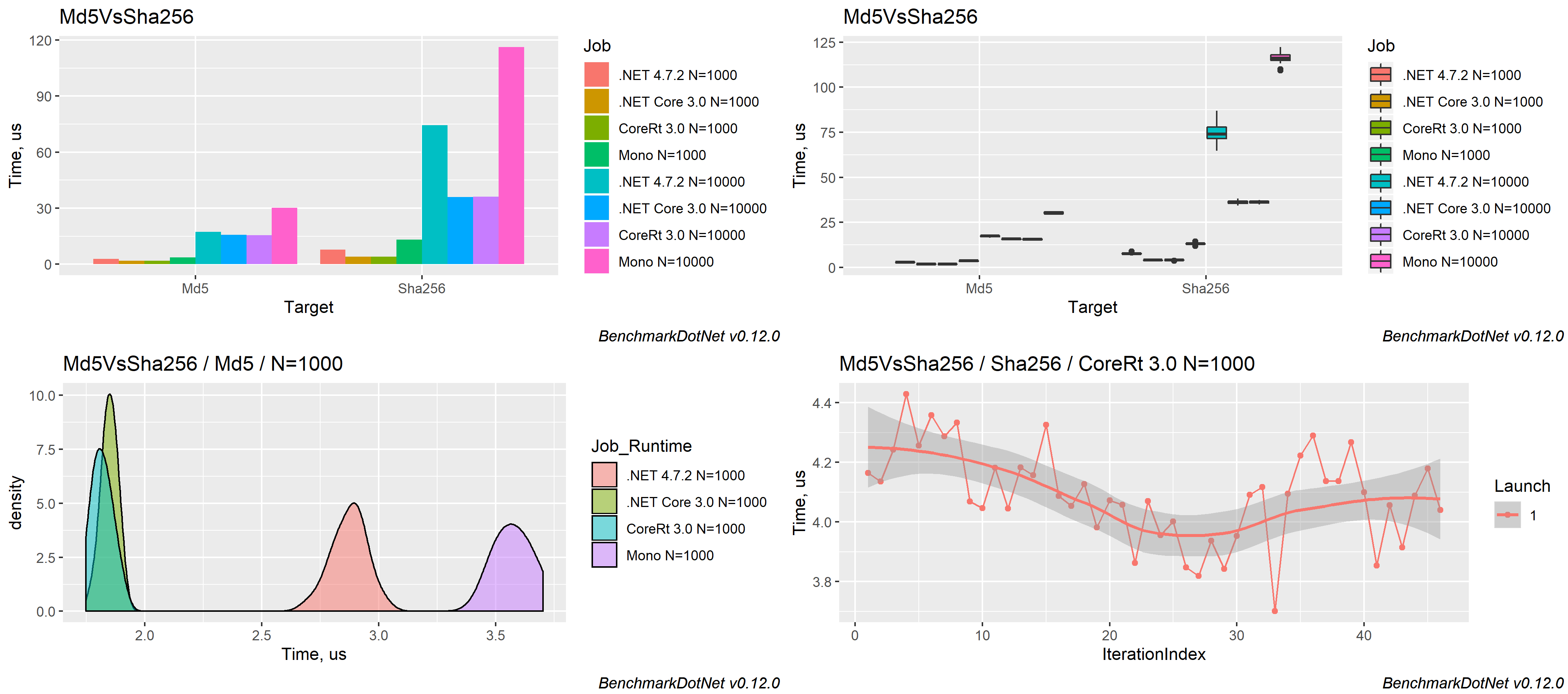
So we have accomplished a lot with BenchmarkDotNet, but the result table printed at the console is not so satisfying isn't it? What if you want a more graphical representation of the results or a CSV-formatted file, which you can import into another tools like Excel or so? For this BenchmarkDotNet has also many attributes to offer. For example, if you want to export your measurements to a CSV file, place the [CsvMeasurementsExporter] attribute on your class that contains the benchmarks. There is also the option to print it as a graph by using RPlot, which requires the programming language R11, by using the [RPlotExporter] attribute. The following picture was copied from BenchmarkDotNet's website12.

[CsvMeasurementsExporter]
public class Md5VsSha256
{
    private byte[] data = Array.Empty<byte>();

    private readonly SHA256 sha256 = SHA256.Create();
    private readonly MD5 md5 = MD5.Create();

    [GlobalSetup]
    public void GlobalSetup()
    {
        this.data = new byte[N];
        new Random(42).NextBytes(data);
    }

    [Params(100, 1_000, 10_000)]
    public int N { get; set; }

    [Benchmark]
    public byte[] Sha256() => sha256.ComputeHash(data);

    [Benchmark]
    public byte[] Md5() => md5.ComputeHash(data);
}
The following code uses all above described features at the same time:
[MemoryDiagnoser]
[SimpleJob(RuntimeMoniker.Net70)]
[SimpleJob(RuntimeMoniker.Net80)]
[CsvMeasurementsExporter]
public class Md5VsSha256
{
    private byte[] data = Array.Empty<byte>();

    private readonly SHA256 sha256 = SHA256.Create();
    private readonly MD5 md5 = MD5.Create();

    [GlobalSetup]
    public void GlobalSetup()
    {
        this.data = new byte[N];
        new Random(42).NextBytes(data);
    }

    [Params(100, 1_000, 10_000)]
    public int N { get; set; }

    [Benchmark]
    public byte[] Sha256() => sha256.ComputeHash(data);

    [Benchmark]
    public byte[] Md5() => md5.ComputeHash(data);
}
Further reading
If you are hooked with BenchmarkDotNet and benchmarking itself, there is a book13 from the author of BenchmarkDotNet, which describes the most common pitfalls with benchmarking and improvements for your software.
There are also other benchmarking tools for other scenarios like load-testing or stress-testing, such as NBomber14 or Grafana Lab's k615. These tools measures the responsiveness and durability of your web-based APIs.
-
Wikipedia article of performance measuring (accessed on 03/11/2024) ↩︎
-
Wikipedia article of (key) performance indicators (accessed on 03/11/2024) ↩︎
-
Visual Studio performance profiler (accessed on 03/11/2024) ↩︎
-
BenchmarkDotnets .NET Foundation homepage (accessed on 03/11/2024) ↩︎
-
Benchmark example from BenchmarkDotnet documentation (accessed on 03/11/2014) ↩︎
-
Switch to Release mode in Visual Studio (accessed on 03/11/2024) ↩︎
-
Wikipedia article of R programming language (accessed on 03/11/2024) ↩︎
-
Pro .NET Benchmarking: The Art of Performance Measurement on amazon.de ↩︎